SetPoint Button Tool - Configuring General Properties
The General page is where you define the target point you want to update, configure a user prompt, as well as other messaging and timeout properties. The target point can be very explicitly defined allowing a templated point tag, inheriting some or all of the point identifier properties from the button properties or from a reference facility. Alternatively you can specify a fully qualified point tag.
|
Click the thumbnail to see |
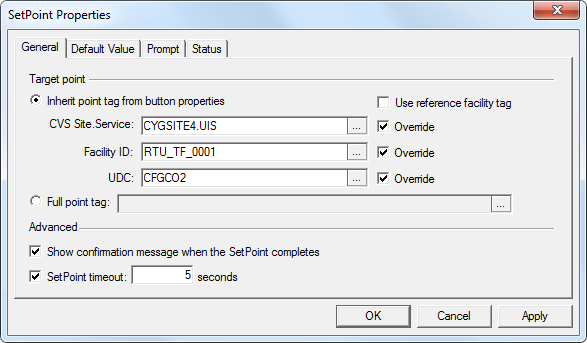
The properties for each section or button on this page are described below.
General Properties
The following table lists and describes General page properties.
| Property | Description |
|---|---|
| Target point | |
|
Click to inherit the point tag elements from the values configured for the button object. Optionally you can override to inherit some or all of the point tag elements, or choose to use a reference facility. An inherited point tag is the default option for the point.
|
|
|
Click ... to open the Select Point dialog box, then select the CVS Site.Service and point to use for the target point. |
|
| Advanced | |
|
Show confirmation message when the SetPoint completes |
Click to confirm the SetPoint operation was issued successfully to the CVS.
|
|
SetPoint timeout |
Specify the number of seconds to wait for the target point’s current value timestamp to match the timestamp submitted, that is, for the SetPoint operation to complete. Notes: The status point initialization delay and/or the status point timeout occur after this timeout. If a timeout is set, the SetPoint operation will use the time of the client machine. If no timeout is set, we won't know if the SetPoint operation was successful or not. We only know that the SetPoint message was successfully sent to the CVS. If a timeout is set, and the SetPoint operation is successful, you can confirm this by comparing timestamps. |
Note: The target point settings are also accessible within a scripting environment via the TargetTag property.


